How to Make Sound Effects for YouTube Videos
You want to make sound effects for YouTube videos: a boom when the title appears, a whoosh when a new chapter starts, a click on every step of a tutorial. Free sound effect packs have plenty of them, but they rarely match each other or your channel.
Written by AI Sound Effects Team5 min readUpdated
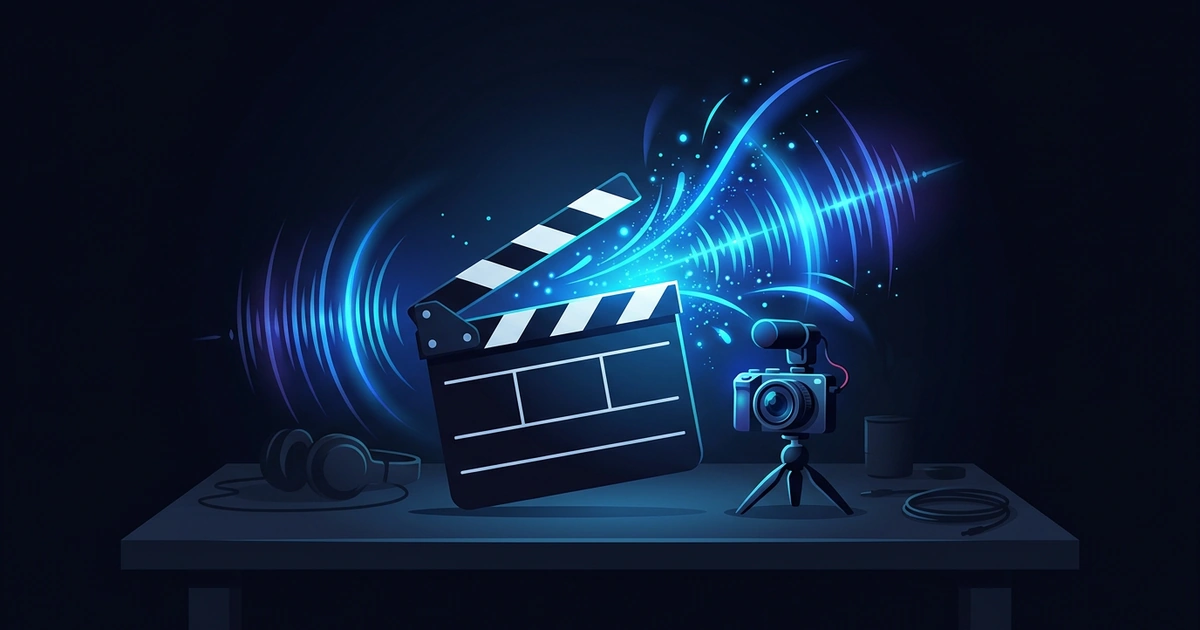
A YouTube video can run 10 minutes or more, so sound does a lot of the guiding: it tells viewers a new part is starting, something changed on screen, or the payoff is close. The hard part is picking a few sounds that fit your channel and using the same ones in every upload, so your videos sound like yours.
To make sound effects for YouTube videos, list the moments that need one, like the title, a chapter change or a click in a tutorial. Describe each sound in a short sentence with the same style word, like “cinematic” or “playful,” so they fit your channel, keep them under your voice, and reuse the same ones in every upload.
Why Use Sound Effects in a YouTube Video?
Sound effects guide attention through a long video. They tell viewers what just changed, like a new section starting or a step finished in a tutorial, so they don’t lose their place.
Use them on the moments that matter, not every cut. A 10-minute video might use a handful of sounds again and again, and they should sit under your voice so every word stays clear.
What Sound Effects Does a YouTube Video Need?
Most YouTube videos use the same six kinds of sound. Watch your edit once, note each moment, and start from these descriptions. They share the style word “cinematic” where it fits, so they sound like one channel.
Intro hit. “Short cinematic boom for the video title.” For your channel name or the video title in the first seconds. Use the same one in every upload, so viewers know your videos by ear.
Chapter transition. “Cinematic whoosh for a chapter change.” Between the main parts of a long video. Make it a little bigger than your cut sounds, so viewers feel a new section start.
Zoom and cut. “Quick soft swoosh for a zoom in.” For zooms, jump cuts and B-roll. Keep it shorter and quieter than the chapter whoosh, since it plays far more often.
Screen recording. “Soft mouse click on a laptop.” For tutorials and reviews, on each click in your screen recording. Add “quiet keyboard typing” for typing moments, and keep both low.
Reveal. “Tense cinematic sound that builds up to a reveal.” For the result, the final build or the answer, ending right as it appears. Save it for one or two moments per video.
Text on screen. “Soft pop for text appearing on screen.” For lower thirds, lists and key words. Use the same pop every time, so viewers learn to read the text.
For your own channel, swap “cinematic” for a word that fits it, like “playful” for vlogs or “minimal” for tech reviews, and use it in every description.
How AI Sound Effects Helps with YouTube Sound Effects
AI Sound Effects lets you make each sound from a short description, so you don’t have to dig through a library for an intro boom that fits your channel. Describe your intro boom first, like “short cinematic boom for the video title,” then use the same style word for the rest, so every upload sounds like the same channel. It also makes sounds that are hard to find, like a spaceship door for a sci-fi short or a storm for a story.
Pick a length that fits the moment, 1 second for a click or a whoosh and longer for a sound that builds up, up to 12 seconds. If a sound comes out too busy, turn down the creativity setting so it sticks closer to your words, or change one word and make it again. Every sound you make stays saved on your phone, so you can compare versions, then save or share the one you keep and add it in your video editor.
Frequently Asked Questions
How do I add sound effects to a YouTube video?
Add them in your video editor before you upload. Put each sound on its own track at the moment it goes with, keep it under your voice, then export and upload. YouTube Studio’s Audio Library also has a sound effects tab when you need a common sound fast.
Where can I get free sound effects for YouTube?
Free sound effect packs are easy to find, but check each pack’s license and whether its sounds match each other and your channel. You can also make your own: AI Sound Effects is free to try with limited free credits and makes a new sound from a one-sentence description.
Can I use AI sound effects in my YouTube videos?
Sound effects generated in AI Sound Effects may be used for personal and commercial purposes, so you can use them in monetized or sponsored videos. Other generators and sound packs set their own terms, which can differ between free and paid plans, so check them before you upload.
Make the sound you need in seconds
Download AI Sound Effects, describe what your video, game, or podcast needs, and hear an original sound effect.